.png?width=150&height=33&name=Layer%201%20(3).png "Layer 1 (3)")
Overview
- 100% drag and drop DIY theme
- Multiple theme settings with easy customization
- Perfect to get you started with HubSpot
- Mobile-first approach
- Fully responsive
- High page speed
Theme Components
- Modules: Modules are objects that you can interchange on website pages. Simply select any module from the library on the left panel, and drop it where you want. These modules add different functionality to your page defining the look and feel of your website. The Bizora theme has 21 modules.
- Templates: Templates are sample layouts of different pages that you might use directly for your website. They are significant assets that help you save time. You can simply replace the demo text with your content and you are ready to publish your website pages.
- Global Settings: The global settings on your website pages affect all of your assets. For example, if you make modifications to a global setting, those changes will appear on every page.
If you have any questions before or after reading the documentation, please contact us.
How To Create a Page?
You can create a website page, landing page, or blog page using the Bizora theme. For creating a page using:
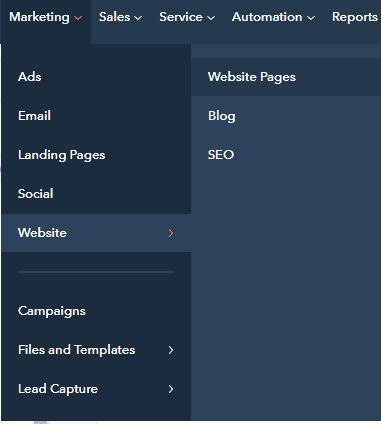
- Log in to your HubSpot portal > Navigate to Marketing > Select Website/Landing Pages > Website Pages/Blog
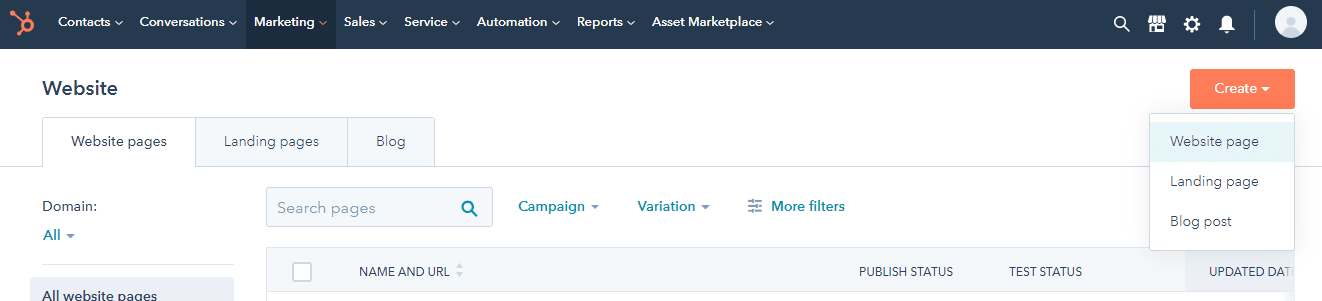
- Locate the ‘create’ option on the right side of the screen > Select an option from Website pages/Landing Pages/Blog post
- Name the page(required) > Select Bizora theme (change if other theme selected by going to edit option) > Select any template from the dropdown (for example, about us, career page, etc) and proceed

How To Edit Global Style?
As mentioned above, global modules change all the properties you edit on every page used. After creating a page, you can edit the global style uniformly. To edit global style on website pages,
- From your HubSpot portal go to Create page/Edit page option
- From the left panel, go to the edit page panel. There are 3 options available, Add, Content, and Theme.
- Click on the theme option > Select edit theme settings. From this option, you can easily make changes to the global colors, global fonts, typography, buttons, spacing, website header, footer, forms, tables, blog settings, and system page settings
How To Edit Theme Settings?
The edit theme settings option enables you to make changes in the theme settings. Just follow these steps and continue:
- Create page/Edit page > Navigate to Edit page panel > Theme > Edit theme settings
The edit theme settings have the following options:
- Global colors– Change primary color, secondary color, body background, and heading.
- Global fonts- Change the heading font and body font, and both of its colors respectively.
- Typography– Change the font line height of H1, H2, H3, etc. body, and links on the desktop and mobile view.
- Buttons– Change button text, spacing, corner, style of dark or light outlined buttons, etc.
- Spacing– Change vertical spacing, maximum content width,
- Website header- Change box-shadow, background, and menu
- Footer– Change style of text, menu, heading
- Forms– Change styles of title, label, help text, fields, forms, and error messages.
- Tables- Change table header, body, footer, and text styles.
Press Apply changes after changing these settings.
How To Edit Global Modules?
There are 2 global modules in the Bizora theme, Website header, and Website footer. To edit website footer/header:
- Create a page or edit a page > Navigate to Edit page panel > Select Theme > Click edit theme settings
- Scroll to the website header or website footer option > edit settings
For both header and footer, you can enable/disable box-shadow, set the first & second shadow color, and decide on the background color. Additionally, you can change the mobile & desktop text font of the menu on the header, the hover color, and edit drop-downs.
Please Note: Publishing the changes on these modules will take effect on all your pages so be sure while doing any modifications.
How To Change Blog Templates?
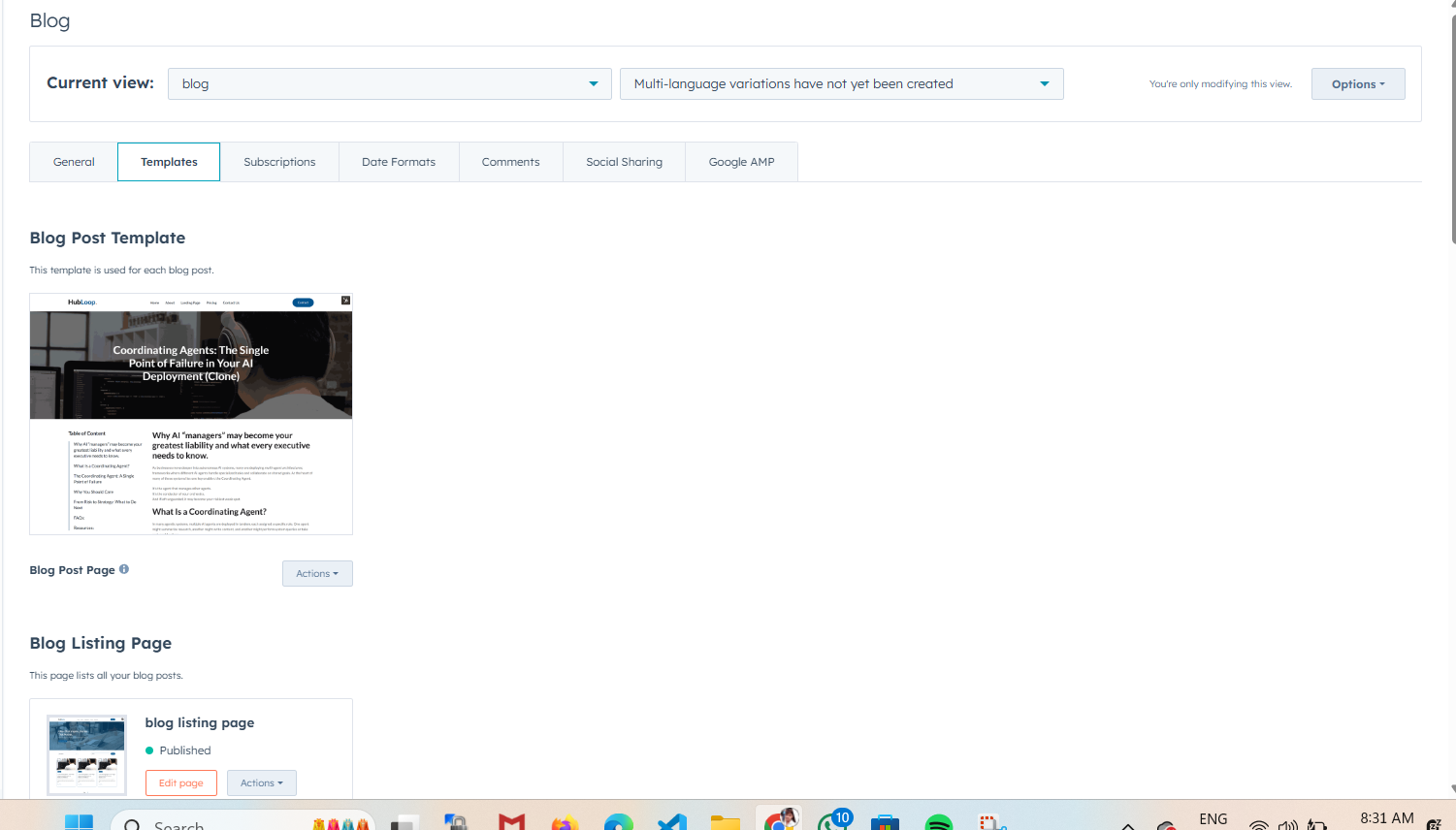
Blog templates are for your blogs. You can create a template for blog listings and blog detailed pages. For changing the blog page template follow these steps:
- Log in to your HubSpot account > Go to settings > on the left side panel, scroll down to marketing > under marketing select blog
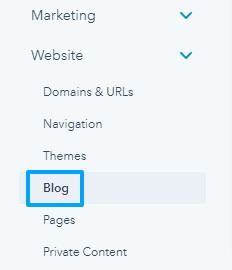
- Go to the template option from the top > Select Bizora from the current view option > Now edit the template if you want to make changes to the blog template.
How To Change System Templates?
To change the system template,
Log in to your HubSpot account > Go to settings > on the left side panel, scroll down to website > under marketing select pages
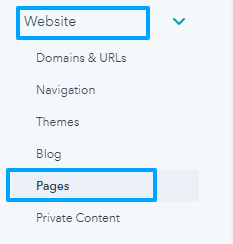
- Select the System Pages section > Set a template for the system pages after clicking it. Choose the Bizora theme system template and then save settings.
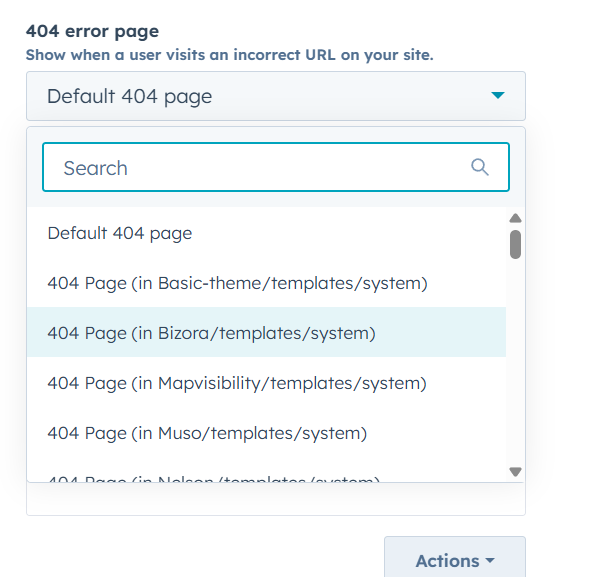
You can set the templates by following the similar steps:
- 404 Error Page
- 500 Error Page
- Password Prompt Page
- Search Result Page
How To Change Email Templates?
For changing the email template:
- Log in to your HubSpot account > Go to settings > on the left side panel, scroll down to marketing > under marketing select email
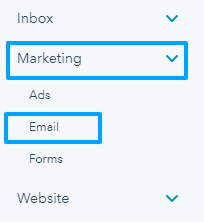
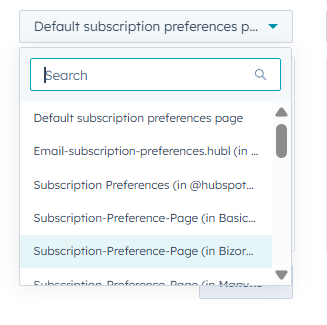
- Select the Subscriptions section > Set a template for the subscription preference page from the dropdown. Choose Bizora theme subscription template and then save settings.